


 World & Exploration
Using the World Map
Get the most out of Rhythmia's live world map: waypoints, filters, personal markers, and real-time party tracking.
Your window into every world
The Rhythmia World Map is a live, zoomable view of every explorable world. It brings locations, travel routes, objectives, party members, and your own saved places together in one screen.
The controls below are safe interactive previews. Try them here, then use the same controls on the live map.
Switching between worlds
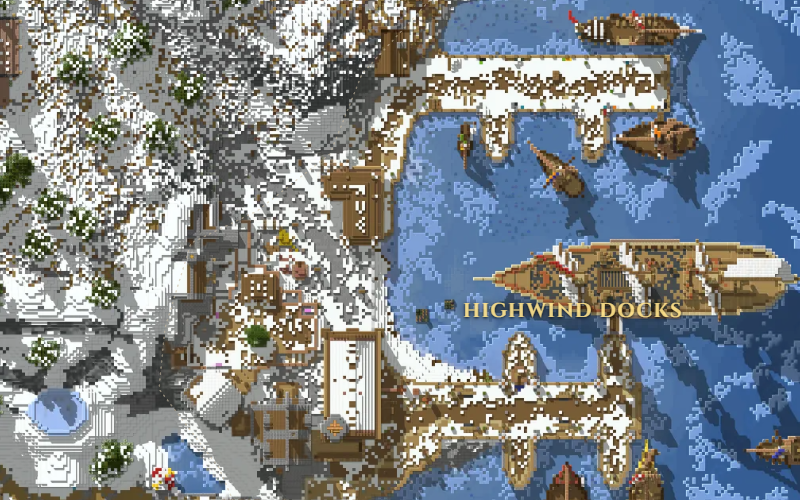
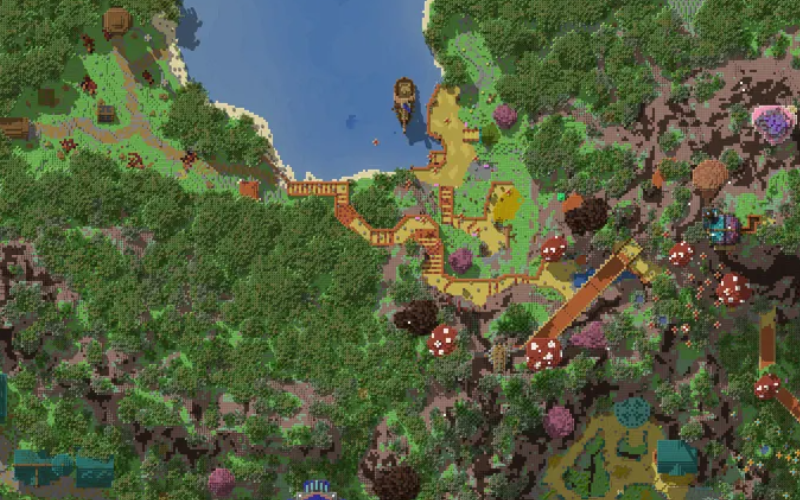
Use the world selector above the live map to switch between Crossval, Highwind, and Feymire. The map, filters, and personal-waypoint counts update to match the selected world.
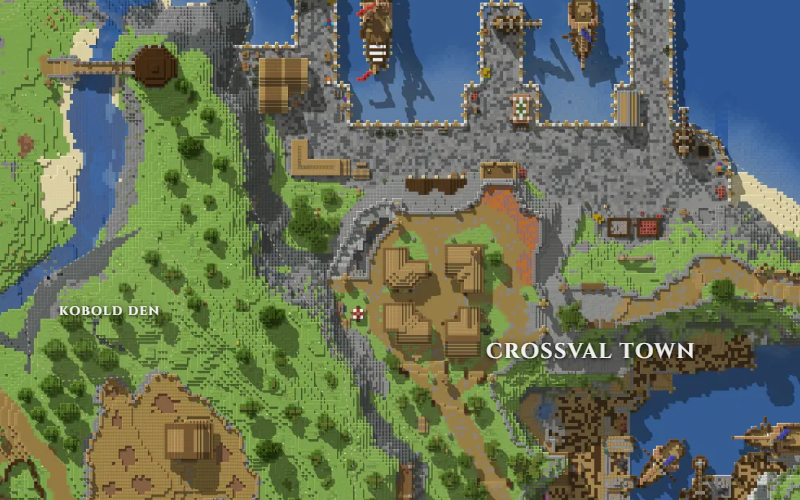
The starting island and its surrounding settlements.
Select the gold-framed world selector above the map.
Choose the world you want to explore from the dropdown.
The live map reloads at the last position you viewed in that world.
Waypoints and filters
Official points of interest are grouped into six categories. Turn a category off to hide all of its markers, or expand supported categories on the live map to choose individual sub-types such as ships, portals, mining areas, or crafting stations.
 Highwind Banks Travel Dungeons Resource Areas Crafting Stations Inns R
 You can expand several filter categories at once. This makes it easy to compare, for example, mining areas with nearby Arcane Forges.
Live location and party tracking
Once you have linked your Minecraft account, the map can show your location, party members, and current quest objective in real time.
Your location updates as you move between worlds.
Party members can be selected to jump directly to them.
Current objectives include a button that focuses their map location.
Follow mode keeps the map centred on your player.
Try the objective or Follow buttons.
Save personal waypoints
Linked players can create private markers and areas. They are stored against your account, persist across browsers and devices, and are visible only to you.
Select “Add marker” to preview creating a waypoint.
Handy map controls
Scroll to zoom, drag to move, or use the map’s on-screen buttons. The same controls remain available in fullscreen mode.
 100%
100%