
 Interface & Settings
HUD
Set up Rhythmia's recommended display settings, manage your tracked quest, and fix common HUD issues.
Set up your Rhythmia HUD
For the best experience, we recommend using GUI Scale 2x and turning Clouds off. You can also choose which active quest appears on your HUD.
Apply the recommended settings
Open the Minecraft video settings using this menu path:
Select GUI Scale until the value displays 2x.
Open Quality, find Clouds, and change the value to Off.
GUI Scale 2x keeps Rhythmia's menus and HUD elements at their intended size.
Manage your tracked quest
You can hide your current quest from the HUD or choose a different active quest to display. Start by opening your player inventory and selecting Quests.
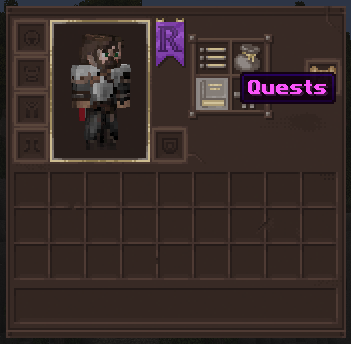
Within Active Quests, select your currently tracked quest to untrack it.
Select the active quest you want to track. Its objectives will appear on your HUD.
Fix other HUD issues
Leave the server and join again. This can refresh HUD elements that are not displaying correctly.
If the problem continues, let the Rhythmia staff know what is missing or behaving incorrectly.